How to perform corporate KYB verification?
KYB verification steps
Step 1: Click the human icon or person icon located in the top-right corner near the language icon.
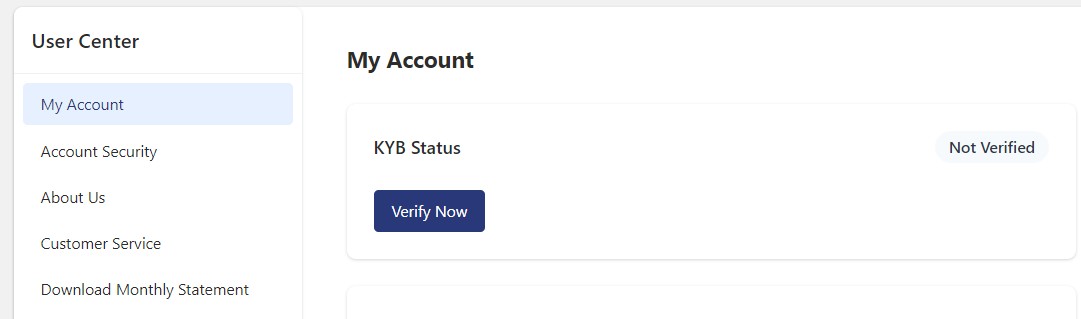
Step 2: Click Verify Now under the KYB Status section.
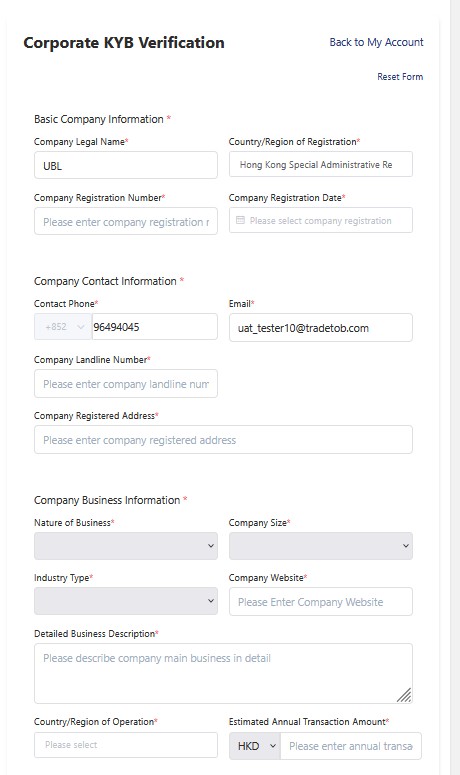
Step 3: Enter all required information in the Basic Company Information, Company Contact Information, and Company Business Information sections.
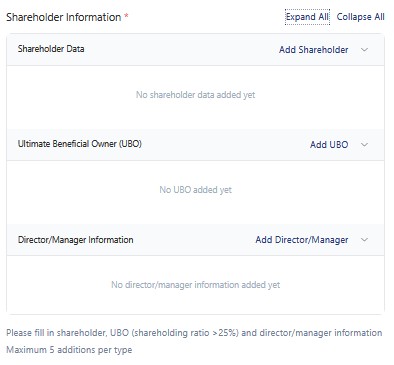
Step 4: Click Add Shareholder, Add UBO, and “Add Director/Manager as needed under the Shareholder Data, Ultimate Beneficial Owner (UBO), and Director/Manager Information sections, respectively, according to your company's ownership and control structure.
You can add a maximum of 5 entries per type.
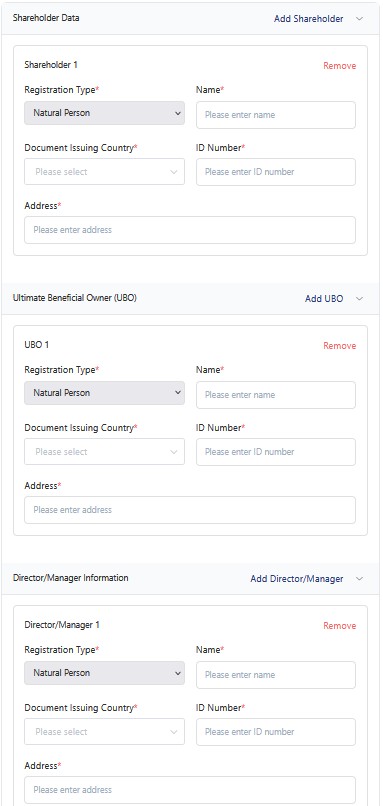
Step 5: Choose the appropriate Registration Type (e.g., Passport, National ID, Driver's License), then fill in the required information in the Name, Document Issuing Country, ID Number, and Address fields accordingly.
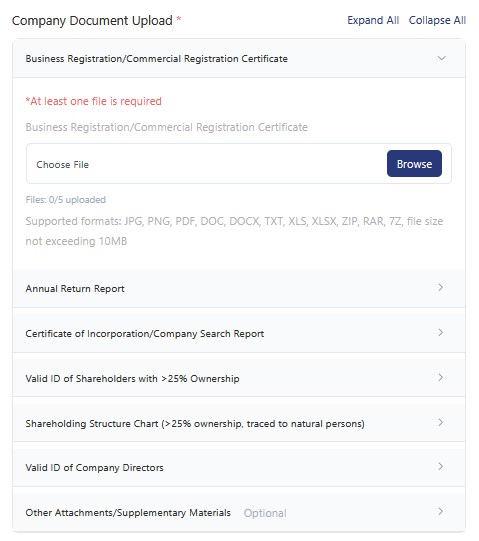
Step 6: Click Browse to select and upload the appropriate file for each section below:
- Business Registration/Commercial Certificate
- Annual Return Report
- Certificate of Incorporation/Company Search Report
- Valid ID of Shareholders with >25% Ownership
- Shareholding Structure Chart (>25% ownership, traced to natural persons)
- Valid ID of Company Directors
- Other Attachments/Supplementary Materials (for any additional supporting documents)
Upload one file per relevant section, ensuring documents are clear, current, and match your company's structure.
Step 7: Click Submit Verification to send your KYB application for review.
